IP Address Conflict: How to Fix Common DHCP Issues in Business Networks.
Suzhou, Jiangsu, China – September 14, 2026 – A payment terminal drops offline when a laptop arrives. A printer answers intermittently. Staff can join Wi-Fi but cannot open the booking system. Any of these symptoms can prompt an “IP conflict” ticket, yet each can have other causes.
For an integrator supporting a live business, the first job is to identify which addressing problem exists. Keep working devices online while you collect evidence from one affected client, its VLAN and the server responsible for that subnet.
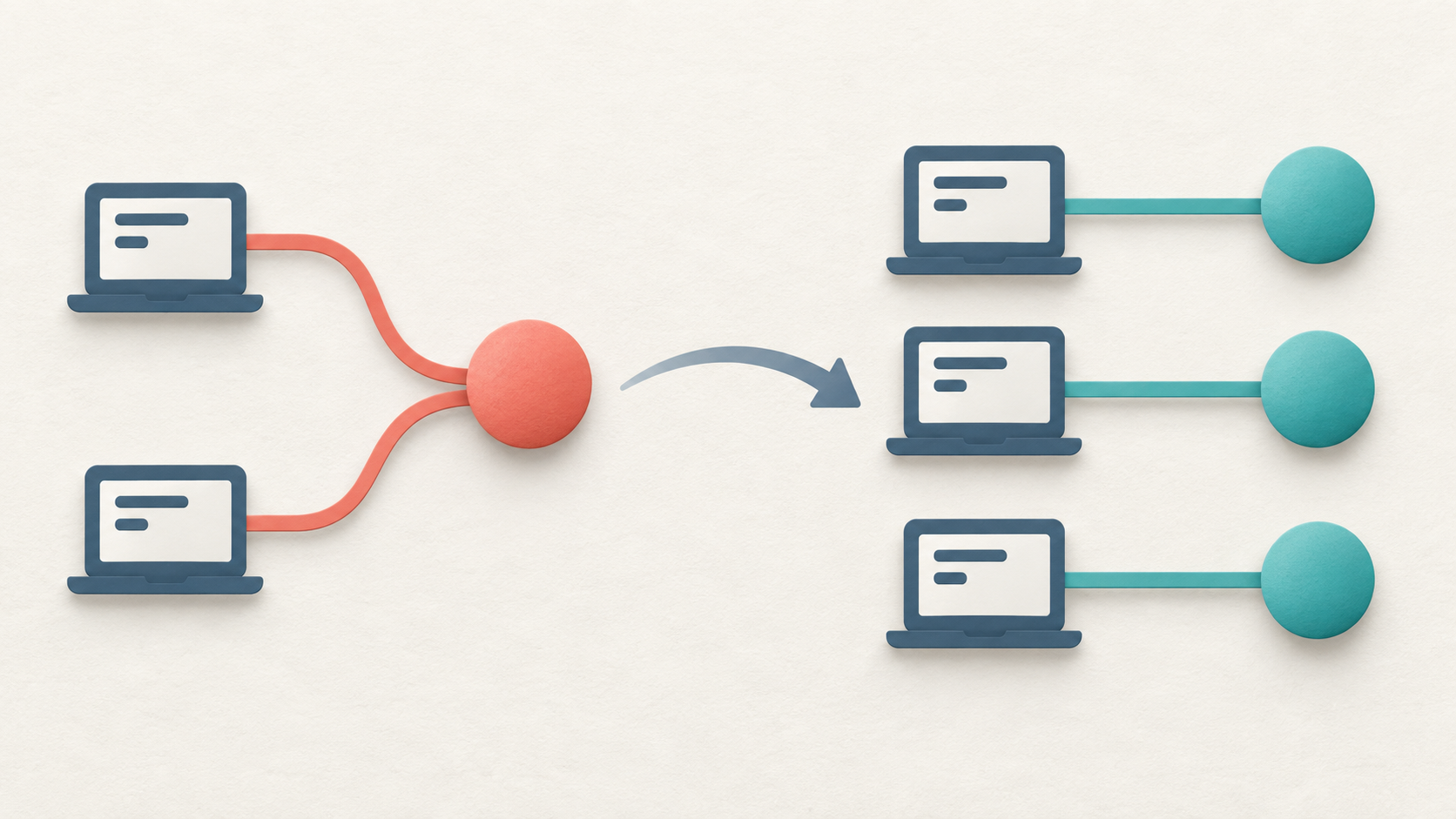
Editorial illustration: a duplicate address and orderly allocation of unique addresses.
Establish whether there is a duplicate address
A typical IPv4 conflict occurs when two uncoordinated devices on the same link try to use the same address. IPv4 Address Conflict Detection uses ARP probes and announcements to identify that situation. The same private address used on separate, isolated networks is not automatically a conflict. IETF RFC 5227
A Windows address beginning with 169.254 often means the client assigned itself a link-local address after it could not obtain DHCP configuration. That is a clue to investigate DHCP availability, not proof of duplication. Microsoft’s APIPA explanation
| Observation | Next evidence to collect |
|---|---|
| An explicit duplicate-address warning | Conflicting address, MAC addresses and event timestamp |
| A self-assigned 169.254.x.x address | DHCP exchange, client VLAN and reachable server path |
| New clients fail while existing clients work | Scope utilization and allocation failures |
| Clients receive unexpected gateways or subnets | DHCP server identity and VLAN membership |
| A valid address works, but names fail | DNS configuration and resolution results |
The table gives investigation directions, not diagnoses. Existing clients can continue using valid leases during some DHCP failures, so their connectivity alone does not establish that the server is healthy.
Capture the client configuration before changing it
On one affected Windows workstation, run:
ipconfig /all
Record the relevant adapter’s IPv4 address, mask, gateway, DNS servers, DHCP server, physical address and lease times. Compare these with a working client on the same intended network. Microsoft documents /all as displaying the complete TCP/IP configuration for all adapters. Microsoft ipconfig reference
Check the SSID, switch port and assigned VLAN. Record recent changes, including a new printer, replacement router, restored configuration or temporary test device.
Before changing server settings, preserve DHCP logs, conflict records and a configuration backup. Record the incident time and timezone so client, switch and server events can be compared. Avoid clearing the entire lease database: it removes evidence and does not repair the source of an overlap.
Trace a confirmed conflict to its owner
Correlate the DHCP lease with the gateway’s ARP information and the switch’s MAC address table. Locate the physical port or wireless client associated with each suspected address owner. Where evidence remains unclear, capture ARP traffic on the affected segment and look for two different devices claiming the same address. Account for deliberately configured virtual IPs or redundancy before treating multiple claims as accidental. RFC 5227, conflict detection
Do not choose a replacement address merely because it fails to answer a ping. The device using it may be asleep or filtering traffic. Check the address inventory, reservations and active leases first.
DHCP also has a specific rejection message. When a client detects that an offered address is already in use, it sends DHCPDECLINE; the server marks that address unavailable. Repeated declines are evidence to investigate, rather than records to delete until the warning disappears. RFC 2131, Sections 4.3.3 and 4.4.1
Correct the cause at the smallest practical scope
Static addresses inside the allocation pool
Consider an illustrative subnet where DHCP allocates 192.168.40.100–199 and a printer has been manually set to .120. The server may allocate that address to another device because it does not manage the printer’s static setting.
Plan a unique address for the printer, then either use a supported DHCP reservation or place its manually assigned address outside the allocation pool, with an exclusion where appropriate. A reservation serves a DHCP client; an exclusion prevents the server from offering an address. Adding an exclusion does not instantly revoke a lease already held by another client. Reconcile that existing assignment as part of the change. Microsoft DHCP scopes
Uncoordinated DHCP servers
Compare server identifiers and offered settings. An additional router can introduce another allocation service, but two servers are not inherently wrong: a properly configured failover pair shares lease information. Check the intended design before disabling either server.
Microsoft DHCP failover
Once an unintended server is identified, remove its DHCP service or isolate its connection through an approved change. Correct affected clients afterward.
Exhausted pools and broken relay paths
An exhausted scope prevents new allocations; it does not by itself prove that addresses are duplicated. Review utilization, exclusions and lease patterns. Any subnet expansion must also fit the addressing and routing plan.
When clients and the DHCP server occupy different subnets, inspect the DHCP relay, VLAN configuration and permitted traffic. Follow the request and reply path to find where the exchange stops. Cisco’s enterprise troubleshooting guide treats client, server and relay as separate diagnostic points. Cisco DHCP troubleshooting
Renew one client and verify the application
After correcting the cause, renew the affected DHCP client. If a release is necessary, perform it locally or with an alternative access path: it interrupts connectivity on that adapter. For a Windows adapter actually named Ethernet, the commands are:
ipconfig /release “Ethernet” ipconfig /renew “Ethernet”
Substitute the exact adapter name. These commands apply to DHCP-configured client adapters; do not run them across the whole site as a blanket fix. Microsoft ipconfig reference
Confirm the address, gateway and DNS settings, then test the business application and a second client joining the same VLAN. Continue checking for repeated conflicts or declines. Update the address inventory and change record before closing the ticket.
When discussing a toda network deployment, include the topology, VLAN plan and intended DHCP server location with the equipment requirements. Clear ownership of address allocation makes installation and subsequent support easier for everyone involved.
About Us
Suzhou Todahika Technology Co., Ltd. is a professional service provider on the solution of Internet information technology, main products include industrial switch, industrial wire and electric control box, etc. We are committed to providing a wide range of industry solutions from our customers pain points, ensuring complete delivery of product solutions to all over the world, and following up on every project and even every device to build a secure, convenient and efficient environment for intelligent IOT applications.
Media Contact
Company Name: Suzhou Todahika Technology Co., Ltd.
Contact Person: Media Relations
Email: Send Email
Country: China
Website: https://www.todahika.com/


